 Deutsch
 English
-
Pinned chatlogs.de
Stuck? Just ask.
-
chatlogs.de
119 answers in plain words.
-
I watch streams
Reading & searchingHow do I read the chat of a particular day?12 My fileWhat is “My file”?9 Data & opt-outHow do I stop my messages from being stored?12 Account & sign-inWhat happens when I sign in with Twitch?9I stream
Setting up overlaysHow do I add an overlay to OBS?7 Clip overlayHow do new clips get into the overlay, and why is one sometimes missing?6 Prize wheelHow does the prize wheel work?4 ChatboxMy chatbox stays empty – how do I test it?6 Stream statsWhat do the stream stats show?5 Subathon timerHow do subs, Bits and raids extend my subathon?15 My channelHow do I suggest a channel – or submit my own?10No answer that fits? Write to us and we’ll look into it.
Ask a questionReading & searching
How do I search and filter chat messages?
Type a word into the search field above the chat – to filter by people, subs or links, open the “Advanced search” next to it.
With something in the search field, you only see the matching lines, and the hits are highlighted.
To read the conversation around them, set “Show surrounding lines” in the advanced search to a number above 0 – each hit then stands in its conversation, with the surrounding lines a little paler.
- Open a channel and a day on the “Chat logs” page.
- Tap “Advanced search” next to the search field.
- Fill in what you need: words, people, or under “Filters” the role, events such as subs and properties such as links.
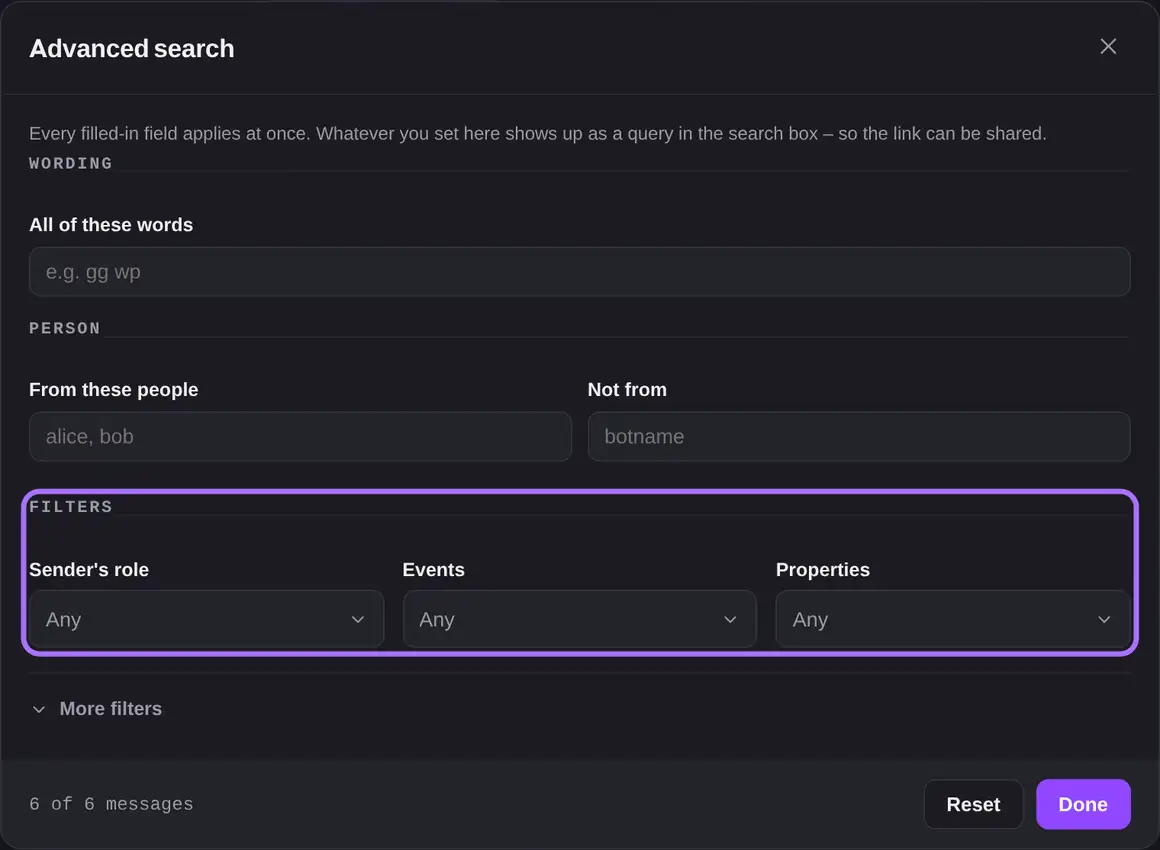
In the “Advanced search” window, the “Filters” section holds the selectors “Sender's role”, “Events” and “Properties”. - Tap “Done”. The active filters appear as tags above the chat.
For examplefrom:alice has:link after:20:00
Good to know
The example shows what the window writes into the search field: links from alice from 8 pm on. You can also type the query yourself. All filled-in fields apply at the same time, and because the query is in the search field, you can share the link.